Build a user journey monitor with Playwright
A user journey monitor signs in, searches, adds to cart or checks out, in a real browser, on a schedule, and tells you the moment a step breaks. This guide sets one up in VerLake from an empty account to a live monitor.
Key takeaways
- A user journey monitor is a Playwright script that VerLake runs in real Chromium on a schedule, from every minute to every hour.
- Monitors live in projects. A project can point at a GitHub or Bitbucket repository, so a monitor runs your existing Playwright suite with one command.
- Keep secrets in an environment. Its variables reach the script as
process.env, never as text in the script. - Set a failure threshold so one flaky run doesn't page anyone. VerLake alerts after that many failures in a row, and again on recovery.
- Test Run tries the script before you save. You don't need to know Playwright: the AI tab can draft the script for you.
What is a user journey monitor?
A user journey monitor is a scripted check that performs the steps a real customer takes through your product, then reports whether each step worked. In VerLake the script is a Playwright test, and it runs in a real Chromium browser on a schedule you choose.
An uptime check only asks whether a URL answers. A login page can return HTTP 200 while the sign-in button does nothing, the payment form never loads, or a third-party script throws an error on submit. A user journey monitor clicks that button, fills that form and checks the result, so it catches the failures your customers would hit first. That kind of check is called synthetic monitoring, and user journeys are its most useful form.
Good first candidates are the flows that cost money or trust when they break:
- Sign-in and single sign-on
- Search, add to cart and checkout
- Sign-up and onboarding
- Agent desktops that must load before a shift starts, such as the Genesys Cloud UI or the Amazon Connect CCP (browser side only)
Before you start
- A VerLake account. Sign up free. The Free plan includes 40,000 execution-seconds, enough for about 800 checks, so you can build and run your first journeys before choosing a plan.
- One flow to watch, and a test account to run it with. Use an account made for monitoring, not a real customer's.
- Optional: a Playwright script. If you already have Playwright tests, you can paste one in or run them from a GitHub or Bitbucket repository. If you don't, the editor's AI tab drafts one from a plain-English description.
Prefer to be shown in the app? After you sign in, click Guide in the top bar. A short tour highlights each control below as you go, and moves on when you click it.
Set up the monitor in 8 steps
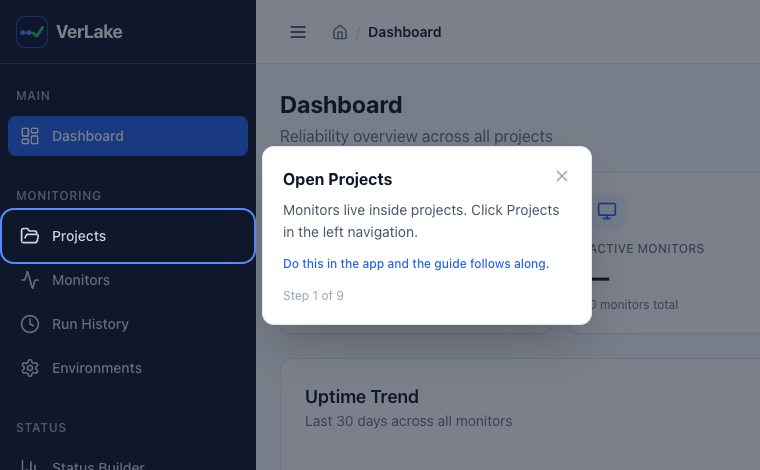
1Open Projects
Every monitor belongs to a project. A project groups related monitors, sets the timezone their timestamps use, and can connect to a code repository. Sign in, then click Projects in the left navigation.
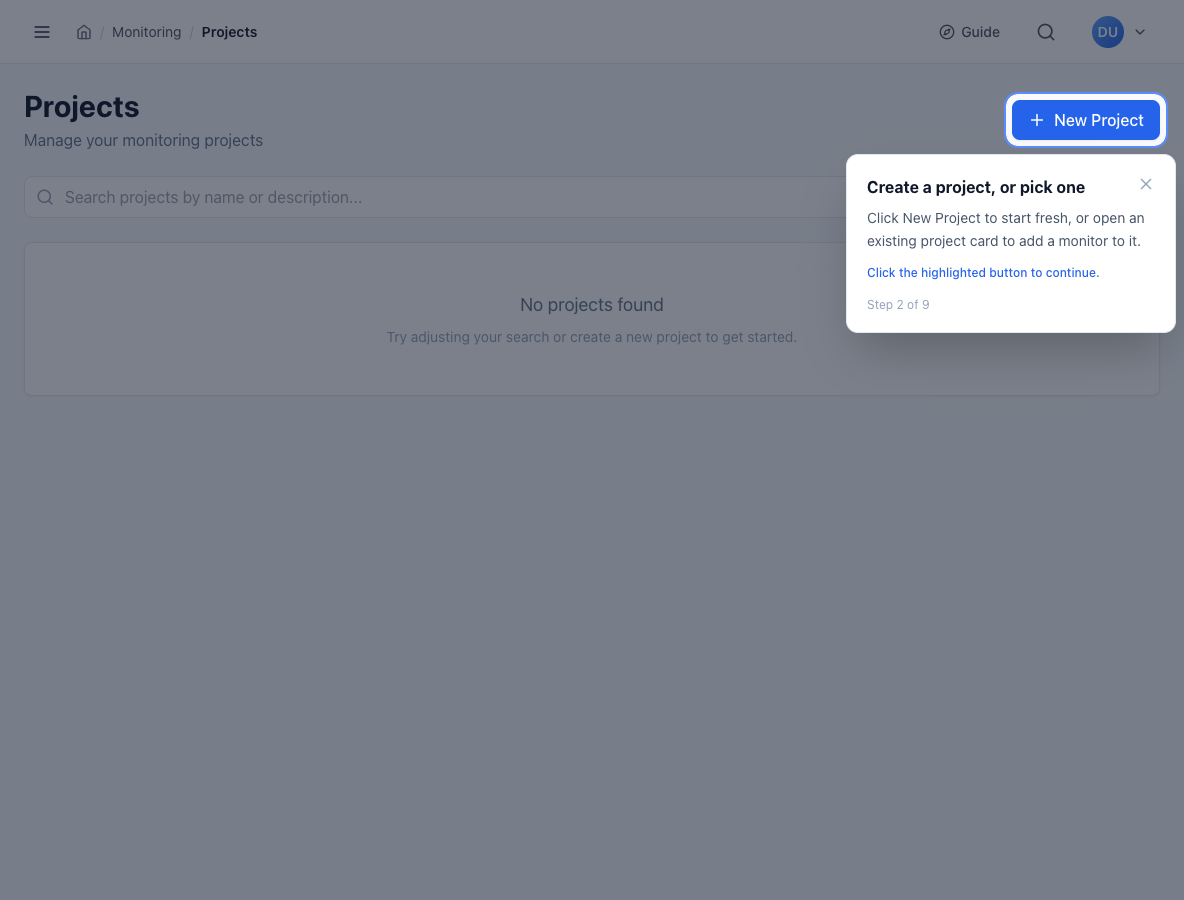
2Create a project, or pick one
Click New Project to start a new one. If you already have a project for this product, click its card instead and skip to step 4.
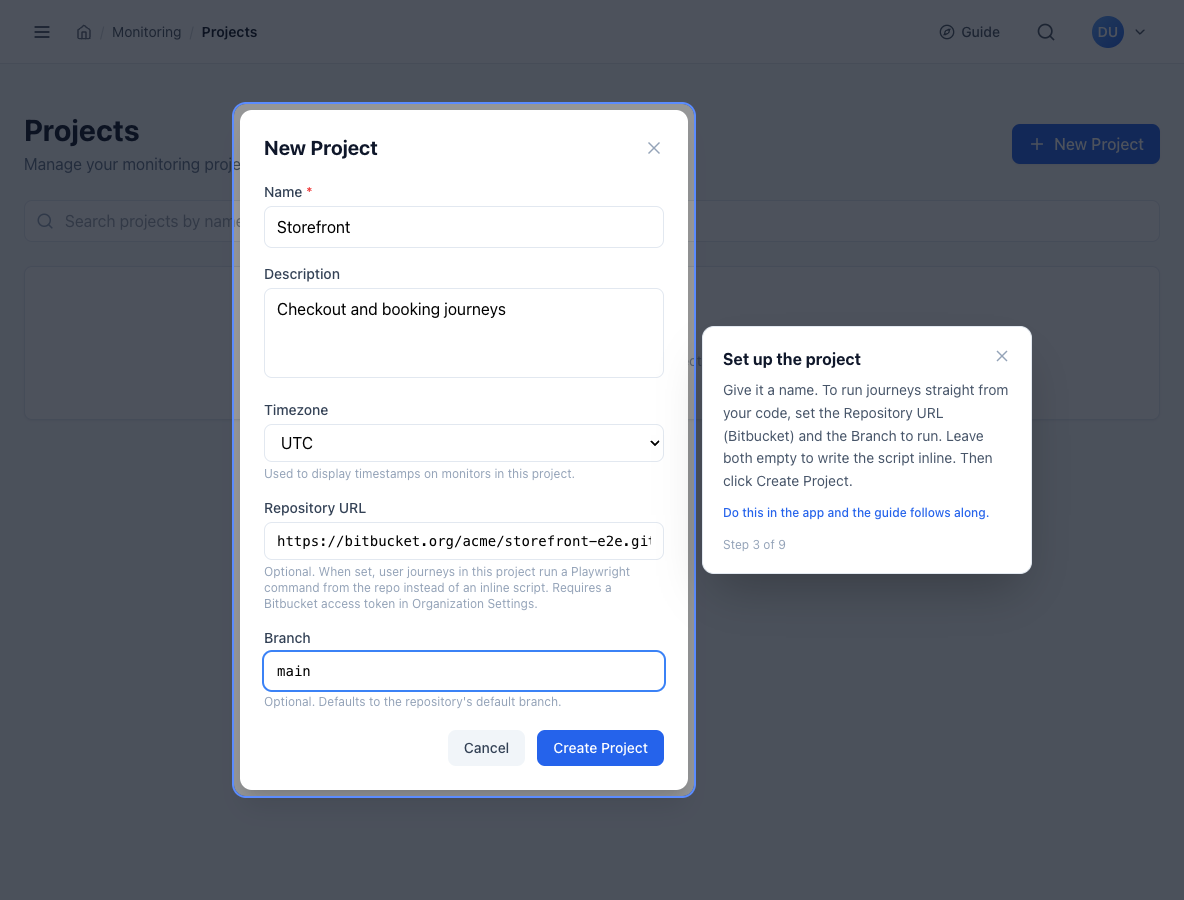
3Name the project, and connect a repository if you have one
Give the project a name and, optionally, a description. Choose the timezone your team reads timestamps in.
The two repository fields decide how this project's journeys get their scripts:
- Leave Repository URL and Branch empty to write or paste each script in the monitor editor.
- Set the Repository URL and Branch to run Playwright straight from your code. Each journey in the project then runs a command at the repository root, such as
npx playwright test tests/checkout.spec.ts, against the latest commit on that branch. If you leave Branch empty, VerLake uses the repository's default branch. Repository runs work with GitHub and Bitbucket. Public repositories clone as they are; for a private repository, add a GitHub personal access token or Bitbucket access token under Organization Settings > Source Control.
Click Create Project. VerLake opens the new project.
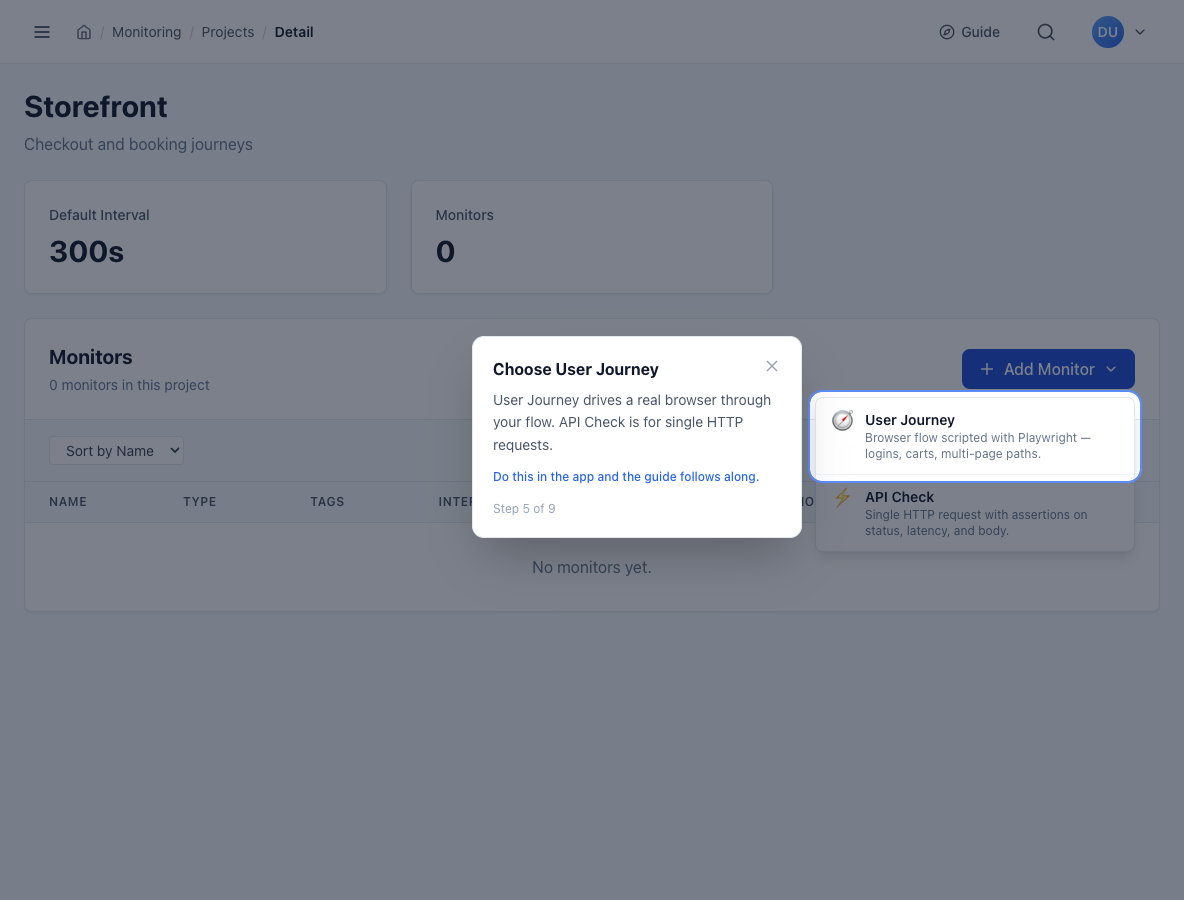
4Add a User Journey monitor
On the project page, click Add Monitor and choose User Journey. A user journey drives a real browser through a multi-step flow. The other option, API Check, sends a single HTTP request and checks the status, latency and body, and it can run as often as every 30 seconds. Many teams pair the two: a fast API check as a tripwire, and a journey that proves the whole flow works.
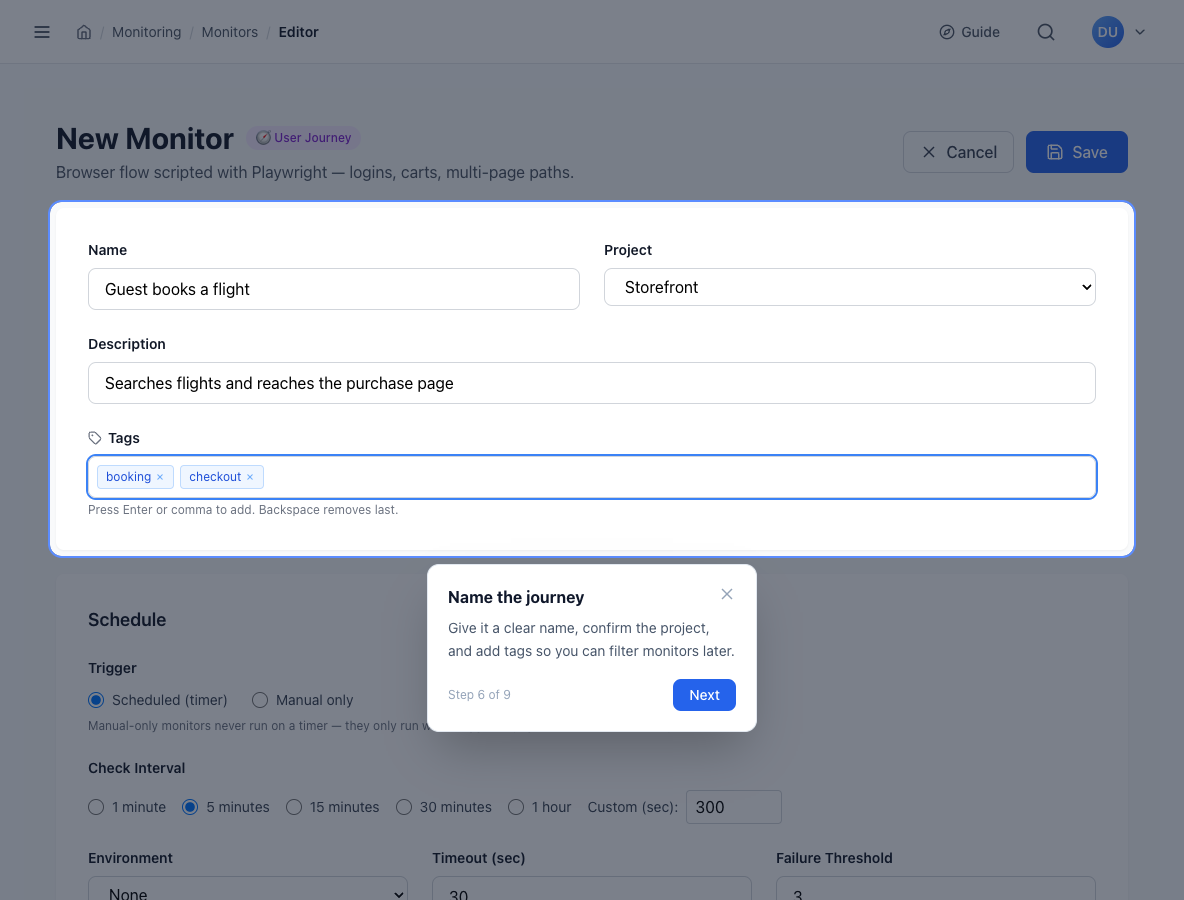
5Name the journey and add tags
The monitor editor opens. Give the journey a name your on-call engineer will understand at 3 a.m., such as Guest books a flight rather than test-2. Confirm the project, and describe what the journey proves in one sentence.
Add tags such as checkout, login or critical to filter monitors later. Press Enter or a comma after each tag.
6Choose when it runs
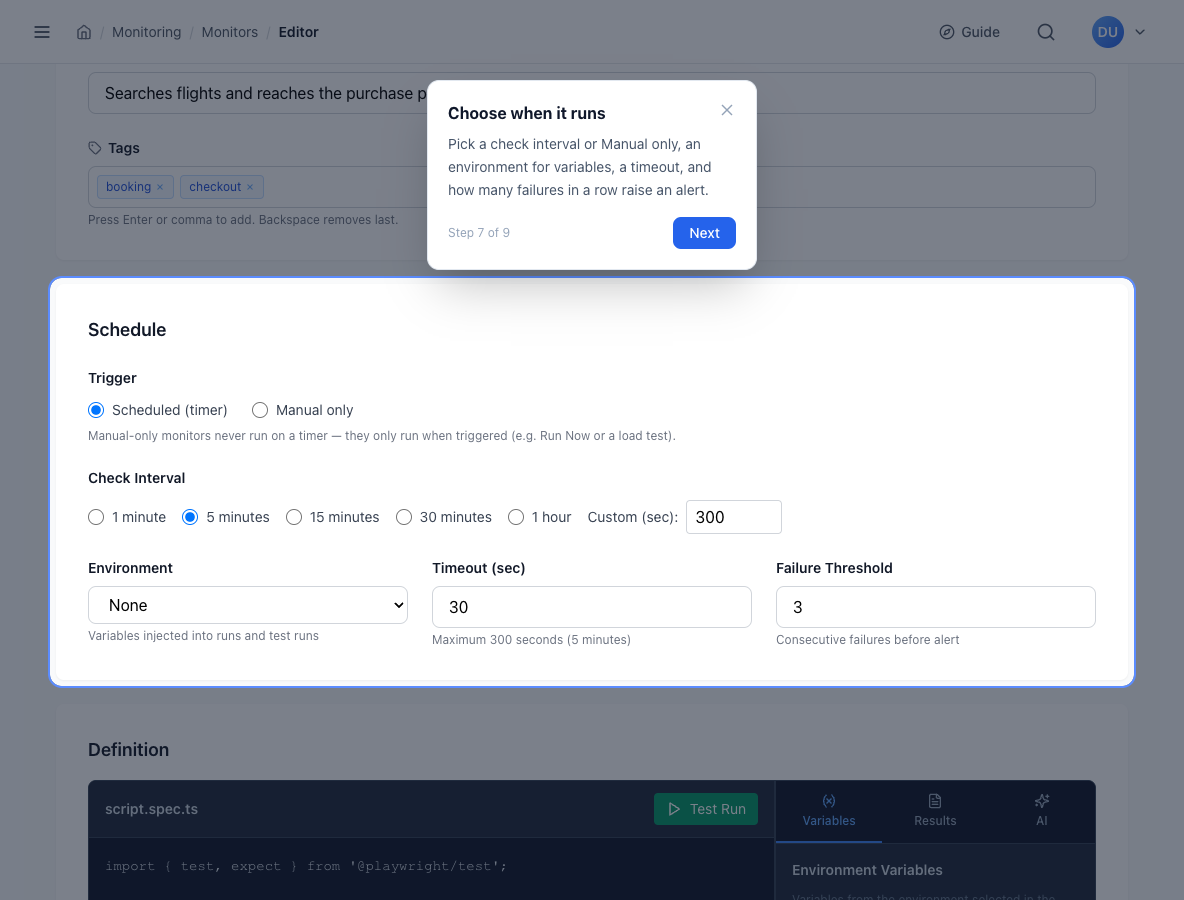
The Schedule section controls when and how the journey runs:
| Setting | What it does | Good starting value |
|---|---|---|
| Trigger | Scheduled runs on a timer. Manual only never runs on its own: only when someone clicks Run Now or starts a load test. | Scheduled |
| Check interval | How often the journey runs: 1, 5, 15 or 30 minutes, 1 hour, or a custom number of seconds. | 5 minutes for critical flows |
| Environment | A named set of variables, such as staging or production URLs and test credentials, injected into every run and test run. | Your production environment |
| Timeout | The longest one run may take, up to 300 seconds (5 minutes). | 30 seconds for a short flow |
| Failure threshold | How many failures in a row count as down before VerLake alerts. | 3 |
7Add the Playwright script
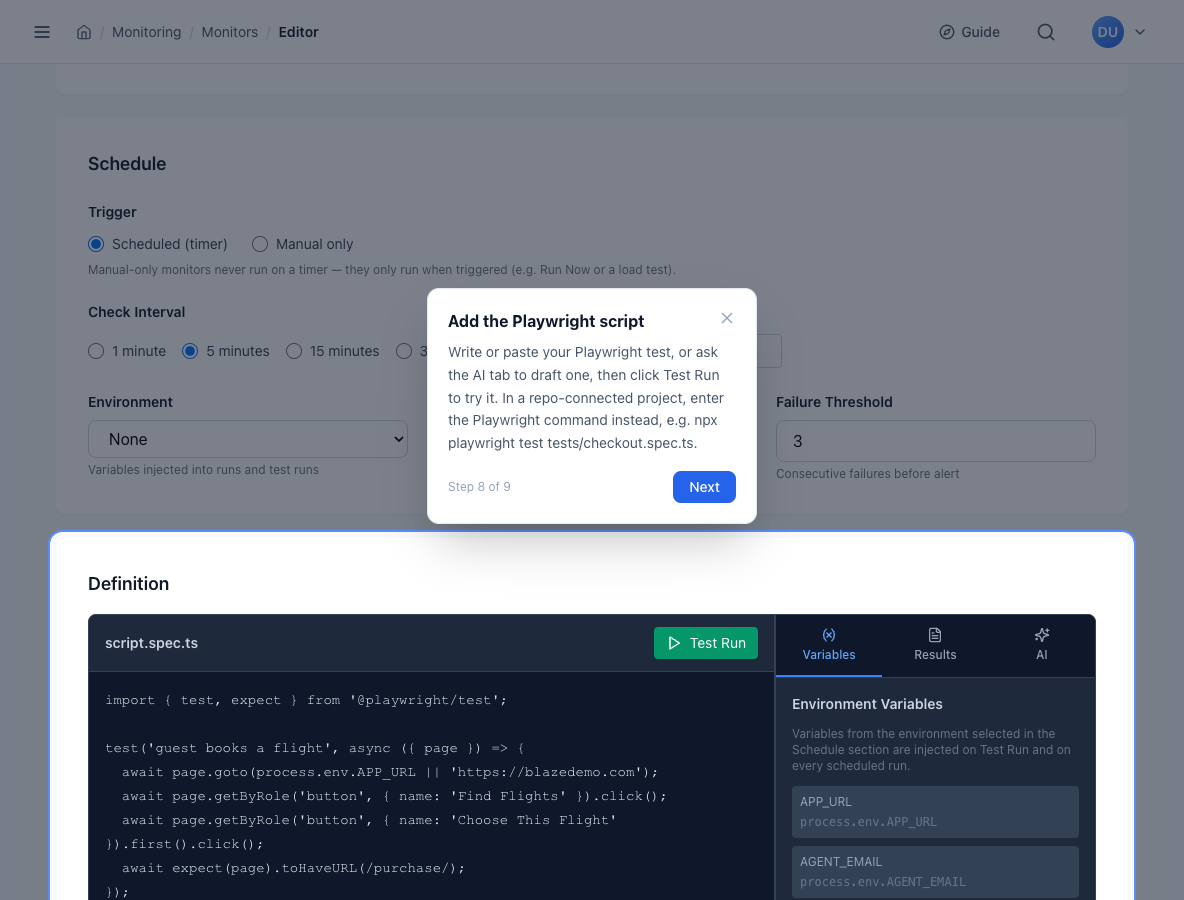
The Definition section holds the script. You can type or paste a Playwright test, or open the AI tab, describe the flow in plain English and apply the script it drafts. The AI assistant uses your organization's own AI API key, which you add in settings.
Here is a small journey against blazedemo.com, a public demo travel site. It searches for flights, picks the first one and checks that the purchase page opens:
import { test, expect } from '@playwright/test';

test('guest books a flight', async ({ page }) => {
  await page.goto(process.env.APP_URL || 'https://blazedemo.com');
  await page.getByRole('button', { name: 'Find Flights' }).click();
  await page.getByRole('button', { name: 'Choose This Flight' }).first().click();
  await expect(page).toHaveURL(/purchase/);
});
Click Test Run to try the script before saving. The results tab shows each step, the console output and any error, with screenshots and a video replay of the run.
In a project connected to a repository, the editor asks for a Playwright command instead of a script. Enter the command you would run locally, for example npx playwright test tests/checkout.spec.ts. Because the run includes checking out and updating the repository, VerLake raises the timeout to 120 seconds for these projects.
8Create the monitor
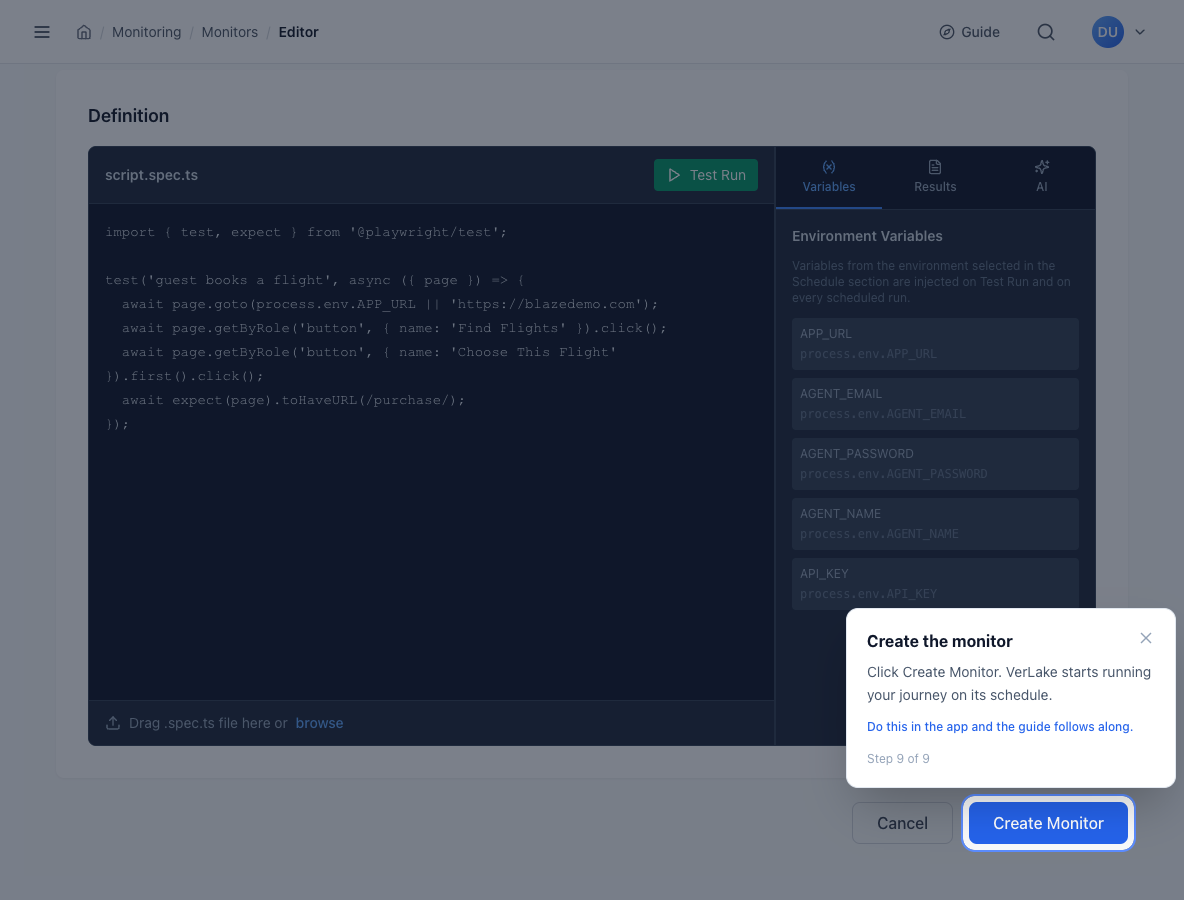
Click Create Monitor. VerLake saves version 1 of the journey, opens the monitor page and starts running it on schedule. Every later change to the script is saved as a new version, so you can see what changed and when.
That's it. Your user journey is live.
Write a script that makes a good monitor
A Playwright test written for CI can be noisy as a production monitor. These habits keep alerts meaningful:
- Assert the outcome, not just the clicks. End with an
expecton what the customer should see: the order confirmation, the dashboard heading, the purchase URL. A journey that clicks through without checking anything can pass while the page shows an error. - Use role and label locators.
getByRoleandgetByLabelsurvive restyling better than CSS classes, so a design change doesn't page you. - Keep secrets in an environment. Read credentials with
process.env.AGENT_EMAILandprocess.env.AGENT_PASSWORD, and set the values in Environments. The Variables tab lists what the selected environment provides. - Use a dedicated test account and avoid irreversible actions. Stop before the final payment step, or use your payment provider's test mode.
- One journey per monitor. A monitor named Checkout that fails tells you more than one named Everything.
- Stay well under the timeout. If a journey usually takes 12 seconds, a 30-second timeout leaves room for a slow day without hiding a real outage.
Choose a check interval
The interval is a trade-off between how fast you hear about a failure and how many execution-seconds you use. VerLake bills the seconds a check actually runs, never the time it waits in the queue, so a 20-second journey every 5 minutes uses about 5,760 seconds a day.
| Journey | Typical interval | Why |
|---|---|---|
| Login, checkout, payment | 1–5 minutes | Every minute down costs revenue or blocks every user. |
| Sign-up, search, onboarding | 5–15 minutes | Important, but a few minutes' delay rarely matters. |
| Settings, reports, admin pages | 15–60 minutes | Used less often and rarely urgent. |
| Pre-release or one-off checks | Manual only | Run on demand with Run Now, or as a load test. |
For the fastest warning, pair a 5-minute journey with an API check on the same service every 30 seconds.
What happens when a run fails
VerLake waits for the number of failures in a row you set as the failure threshold, so a single flaky run doesn't wake anyone. Then it alerts you, and it tells you again when the journey recovers.
Every run records:
- the step that failed, and how long every step took
- the browser console output and the error
- an AI summary of the likely root cause, using your own AI API key
Runs appear on the monitor page and in Run History, so you can compare a failure with the last good run.
Show it on a status page
Add the journey to a status page and your customers can see live status, today's runs and past incidents, all fed by your monitors rather than updated by hand. You can brand the page with your logo, colors and custom CSS, and post incident updates as you work. Status pages are included on the Growth plan and up. See pricing.
FAQ
What is a user journey monitor?
A user journey monitor is a Playwright script that VerLake runs in a real Chromium browser on a schedule. It performs the steps a customer would, such as signing in or checking out, and alerts you when a step fails.
Do I need to know Playwright to create a user journey monitor?
No. You can describe the flow in plain English in the editor's AI tab and it drafts the script for you. The AI assistant uses your organization's own AI API key, which you add in settings.
Can I run my existing Playwright tests as monitors?
Yes. Paste a spec into the editor, or connect the project to a GitHub or Bitbucket repository and give the monitor the command to run, such as npx playwright test tests/checkout.spec.ts. Private repositories need a GitHub or Bitbucket token in Organization Settings.
How often should a user journey monitor run?
Revenue-critical journeys such as login and checkout usually run every 1 to 5 minutes. Supporting flows such as account settings or reports can run every 15 to 60 minutes. You can also choose Manual only and run the monitor on demand.
How do I keep passwords out of my Playwright script?
Put them in an environment and select it in the monitor's Schedule section. VerLake injects each variable into the run, so the script reads process.env.AGENT_PASSWORD instead of a hard-coded value.
What happens when a user journey monitor fails?
After the number of consecutive failures you set, VerLake alerts you, and it tells you again when the journey recovers. Each run records the step that failed, how long every step took, the browser console output, the error and an AI summary of the likely cause.
Build your first journey today
40,000 free execution-seconds, about 800 checks. No credit card.